

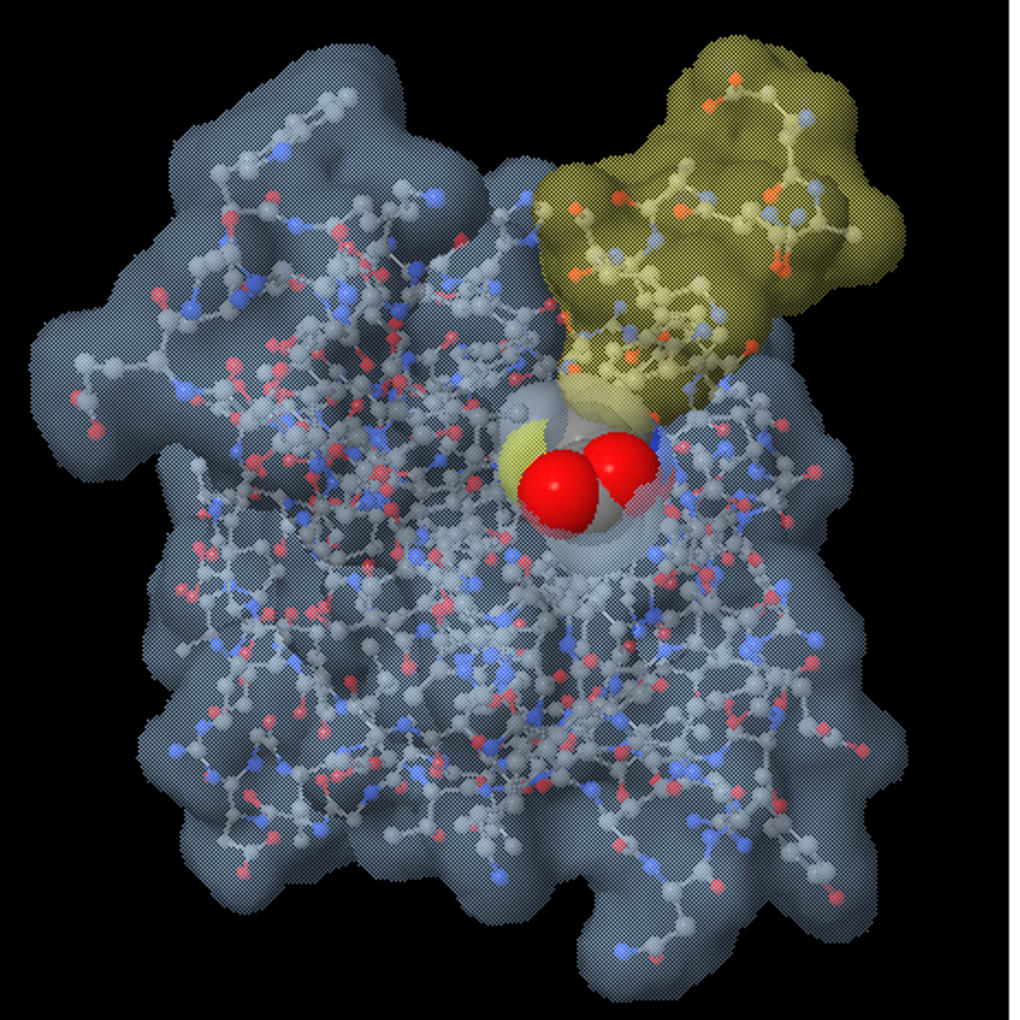
Description
Download Jmol – Free Molecular Visualizer for Windows, Science & Education
Overview
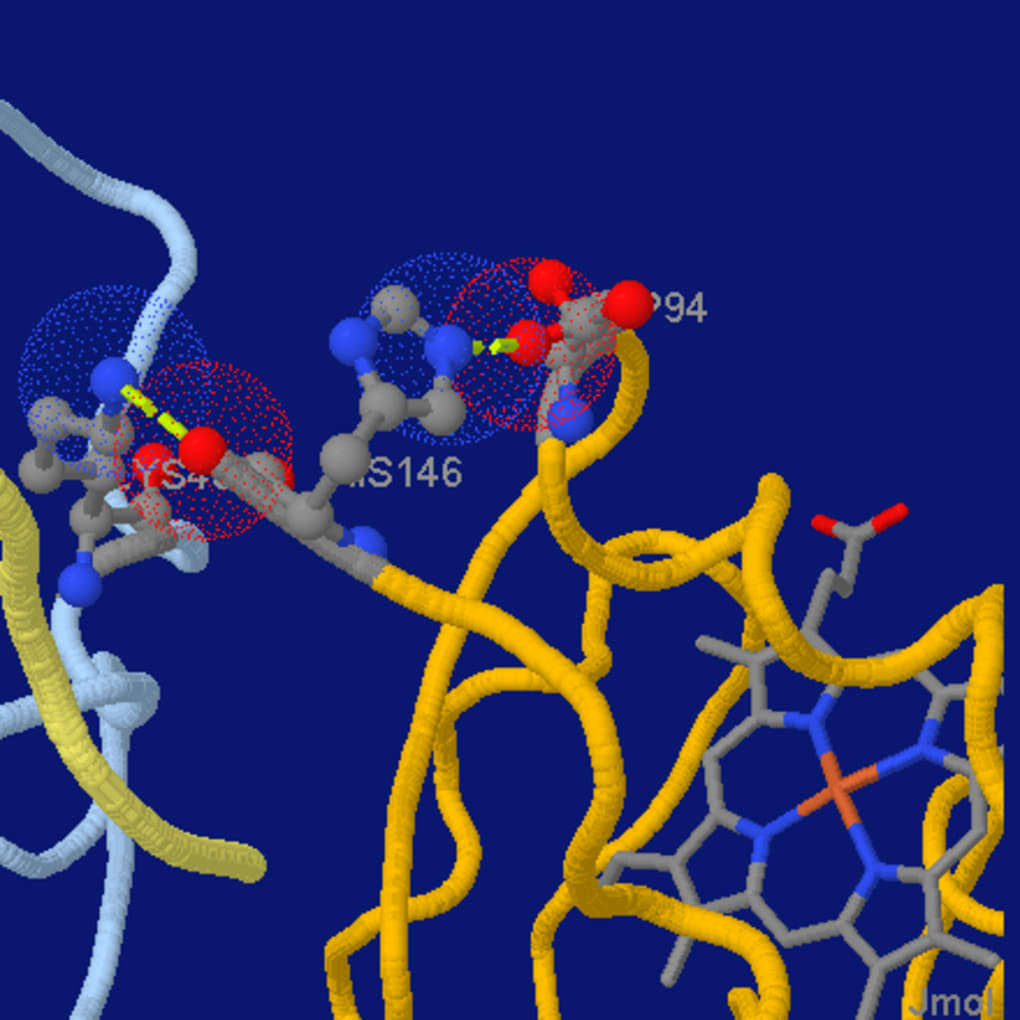
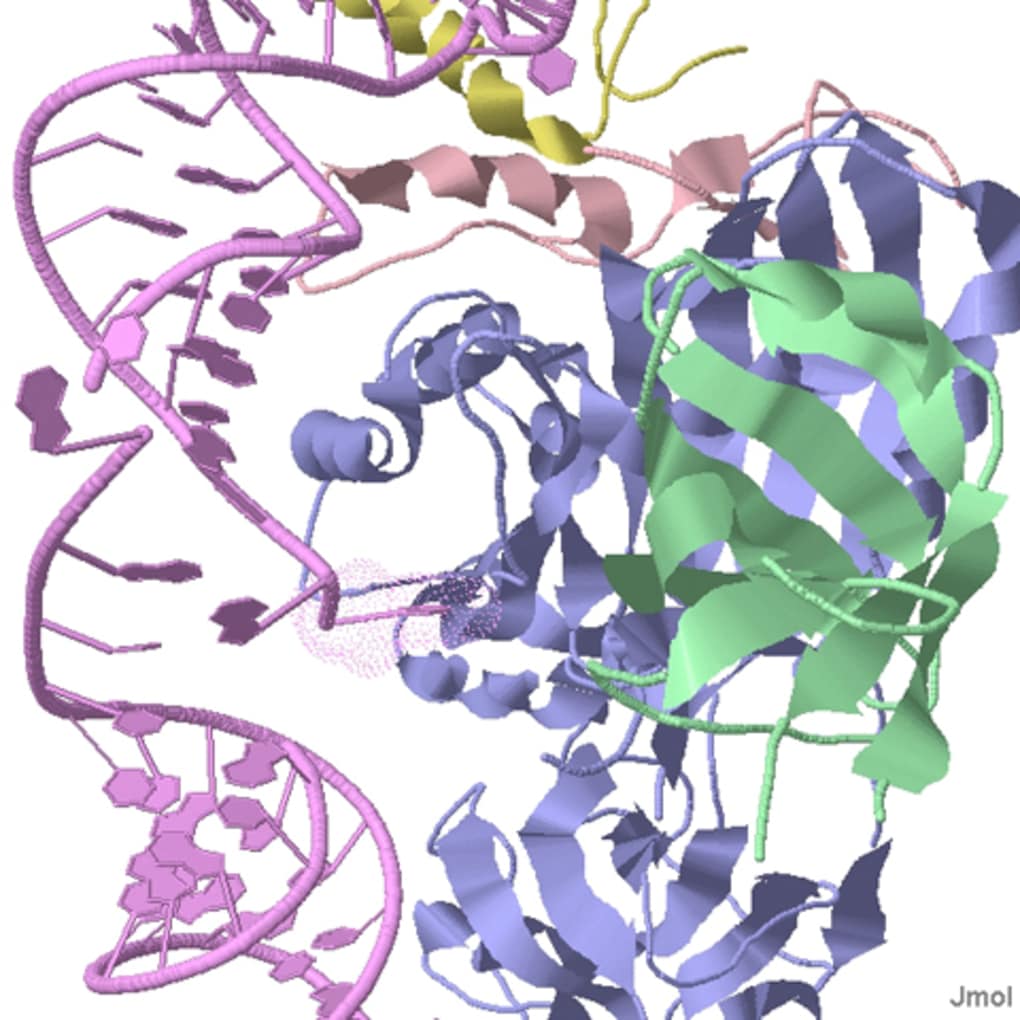
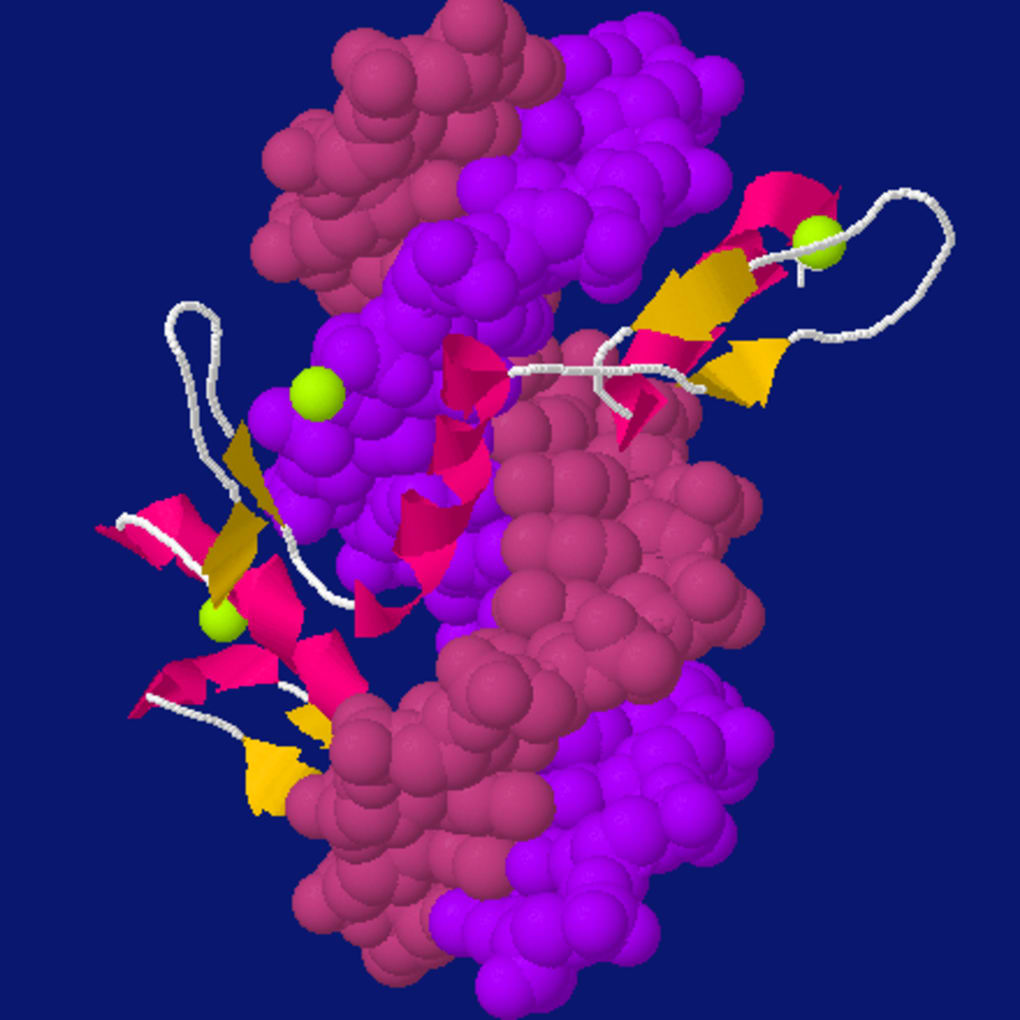
Jmol is a free, open‑source molecular visualization tool that has become a staple in classrooms, research labs, and hobbyist circles worldwide. Distributed under the GPL license, Jmol runs natively on Windows platforms dating back to Windows 98, making it one of the most accessible science‑focused applications for students and educators alike. The current stable release, version 11.8, was last updated on June 17 2012, yet the program remains relevant thanks to its lightweight footprint, multilingual support (English, Spanish, German), and a vibrant community that continues to contribute plugins and scripts. With more than 21 000 downloads since its inclusion in our catalog and a steady weekly uptake, Jmol proves that a well‑designed, free tool can still compete with commercial alternatives in the astronomy and chemistry sub‑categories of the Science & Education software arena. Whether you need to explore crystal structures, render 3D molecular models, or embed interactive visualizations into a web page, Jmol delivers a secure, reliable experience without demanding large amounts of storage or a high‑end GPU. Its cross‑platform Java foundation also ensures that the same files can be opened on macOS or Linux systems via the Jmol applet, although the Windows version remains the most widely distributed.
Features & Installation Guide
Key Features
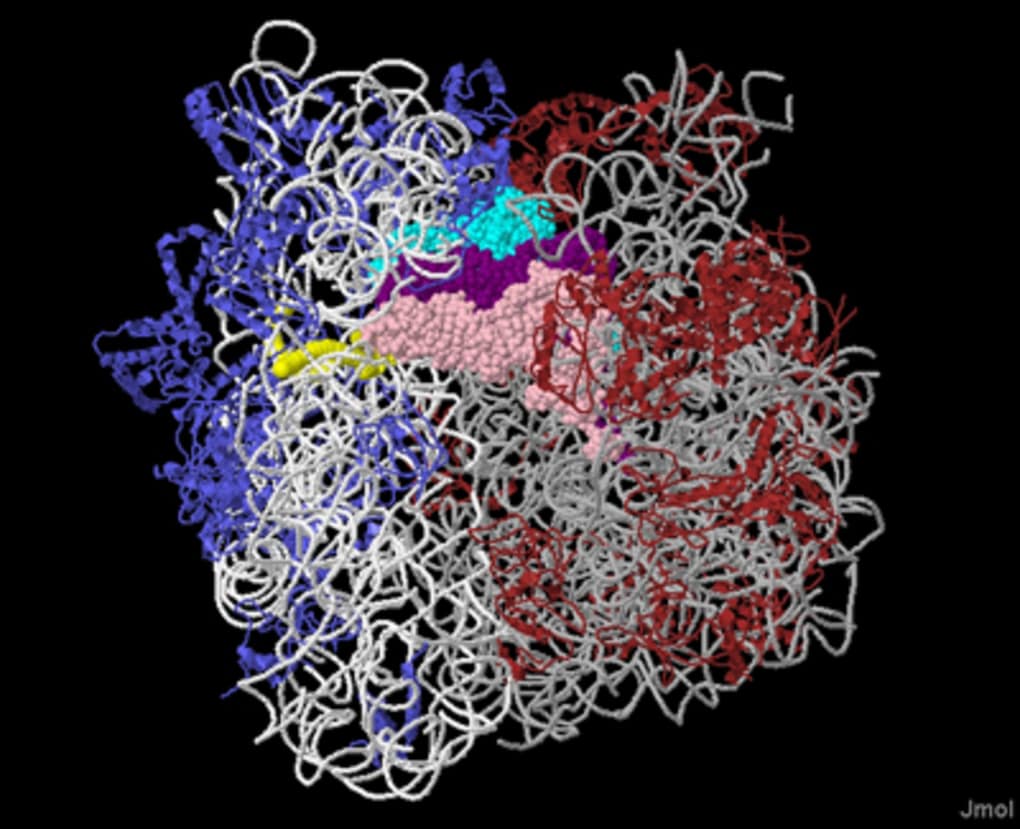
- 3‑D molecular rendering with real‑time rotation, zoom, and clipping.
- Support for a broad range of file formats, including PDB, CIF, XYZ, MOL, and MOL2.
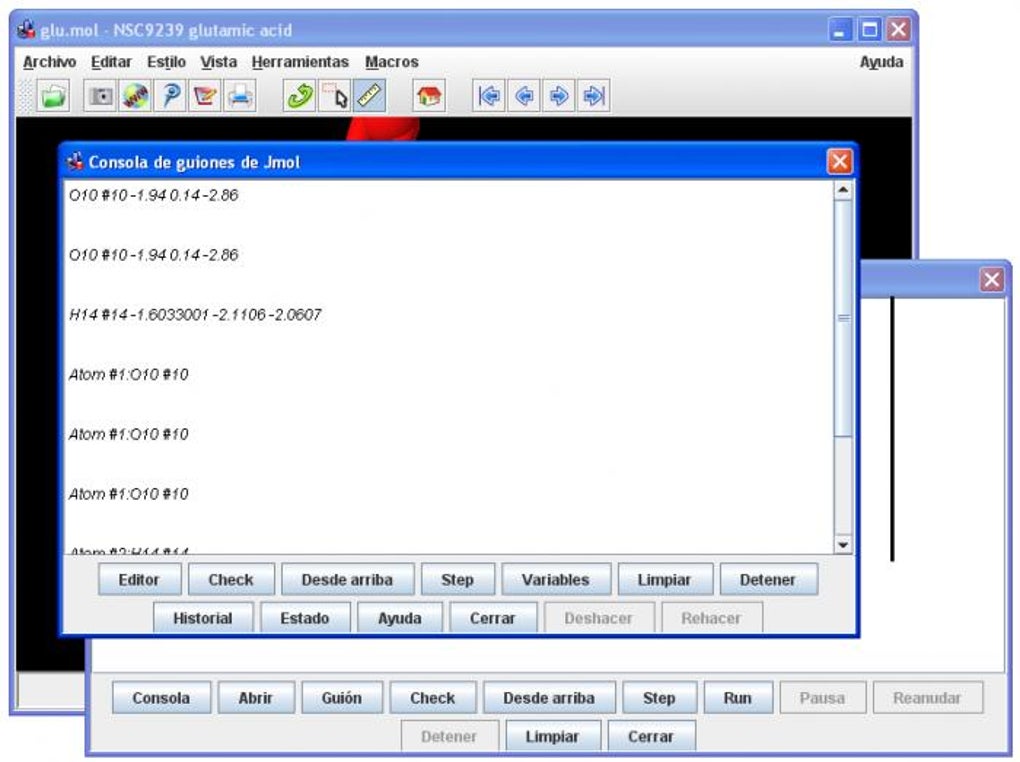
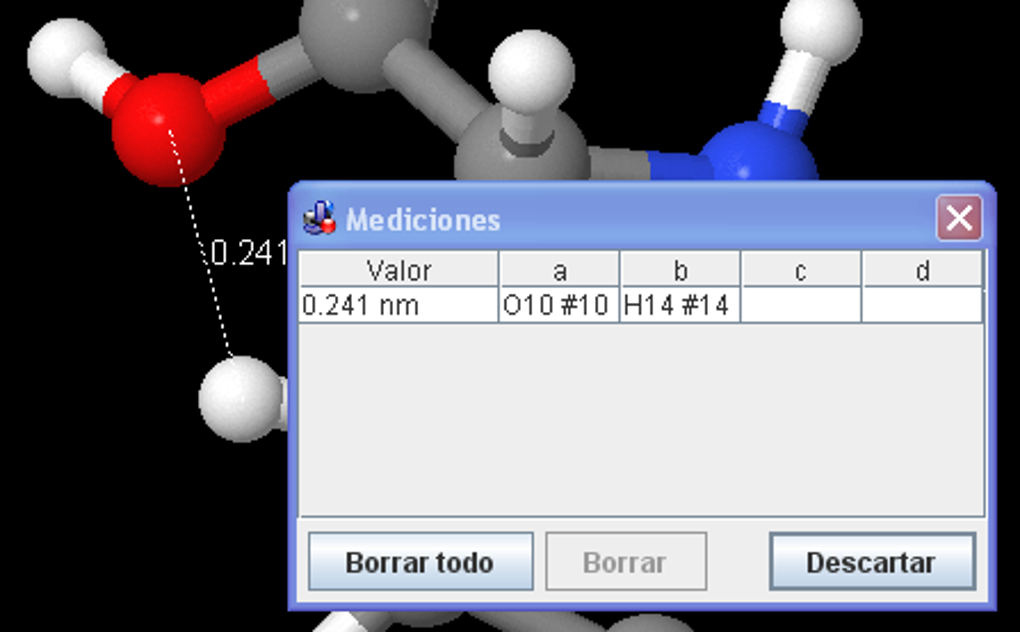
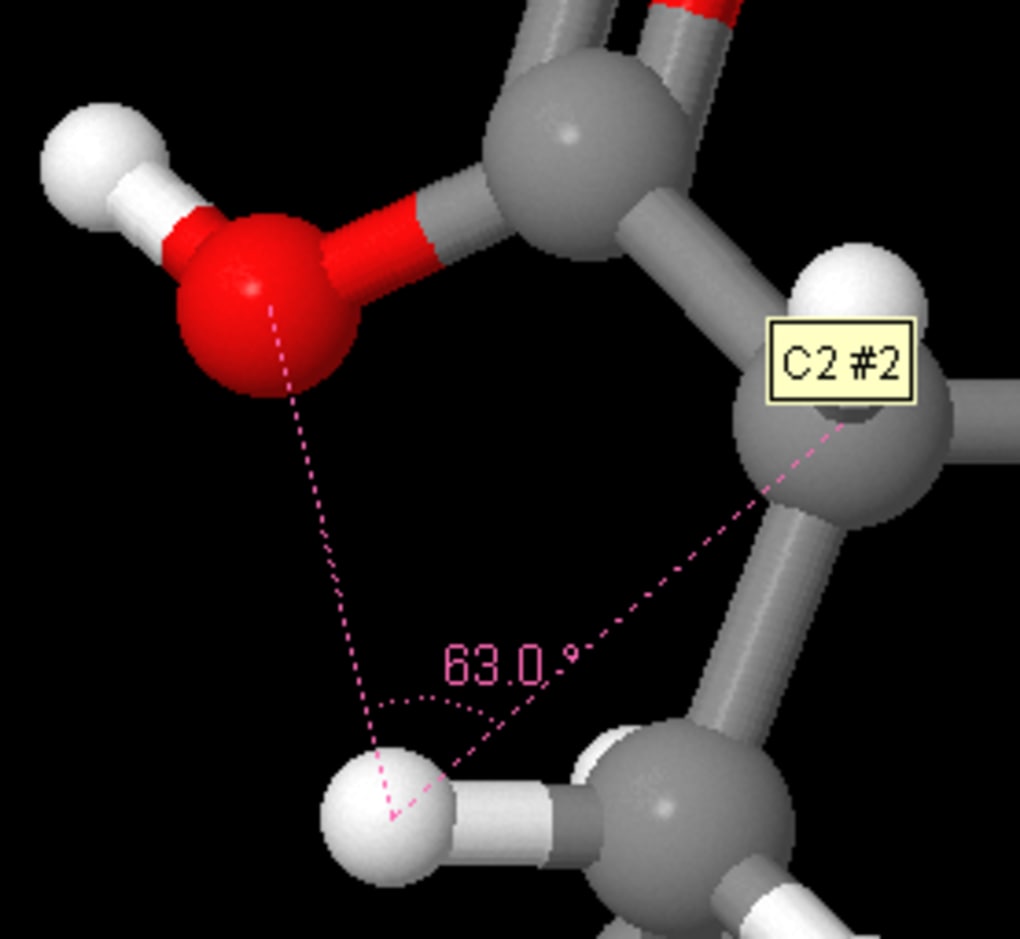
- Built‑in scripting language for custom animations, measurements, and batch processing.
- Interactive web applet that can be embedded in HTML pages for remote learning.
- Multi‑language interface (English, Spanish, German) and extensive documentation.
- Lightweight installer—requires less than 30 MB of disk space.
- Free GPL license, allowing modification and redistribution without cost.
Installation & First‑Time Use
Installing Jmol on a Windows machine is straightforward and can be completed in under five minutes. Follow these steps for a smooth setup:
- Download the latest Windows installer (Jmol‑11.8‑Windows.exe) from the official Jmol website or a trusted software repository.
- Run the executable and accept the license agreement. The installer will automatically detect your Java Runtime Environment (JRE); if none is found, it prompts you to install the latest JRE from Oracle.
- Choose the installation folder (the default path works for most users) and click “Install.” The process copies the core Jmol libraries, the launcher, and optional language packs.
- After installation, launch Jmol from the Start menu. The first launch may take a few seconds while the program initializes its graphics engine.
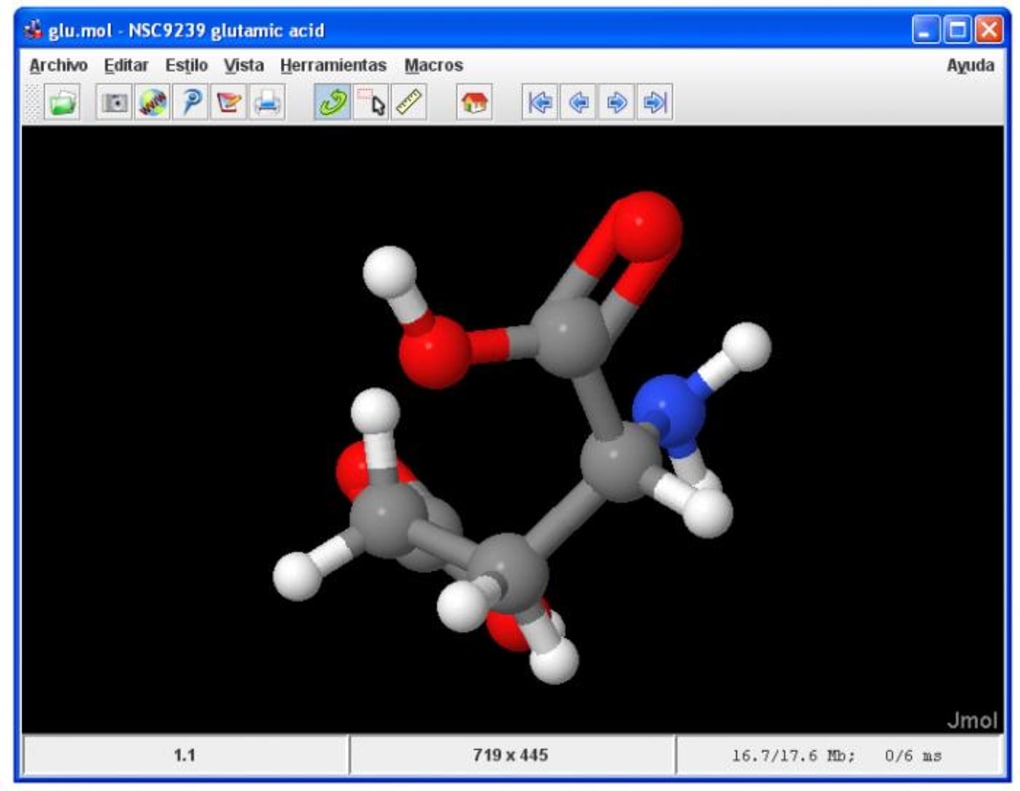
- To open a molecular file, select File → Open and navigate to your .pdb, .cif, or other supported file. Jmol instantly renders the structure in a 3‑D window.
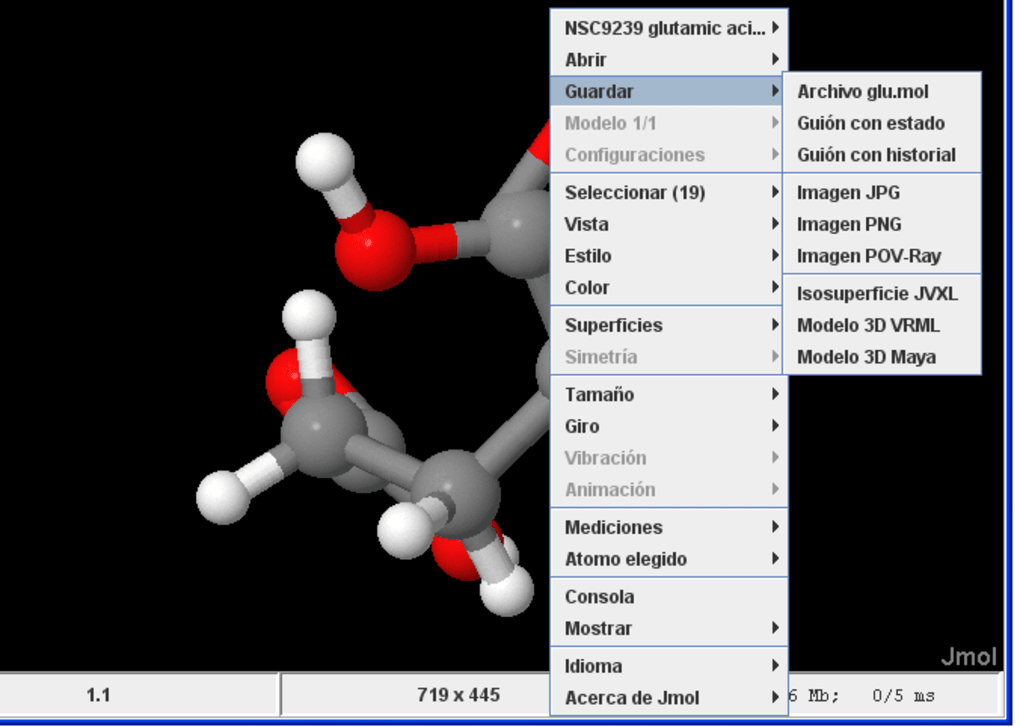
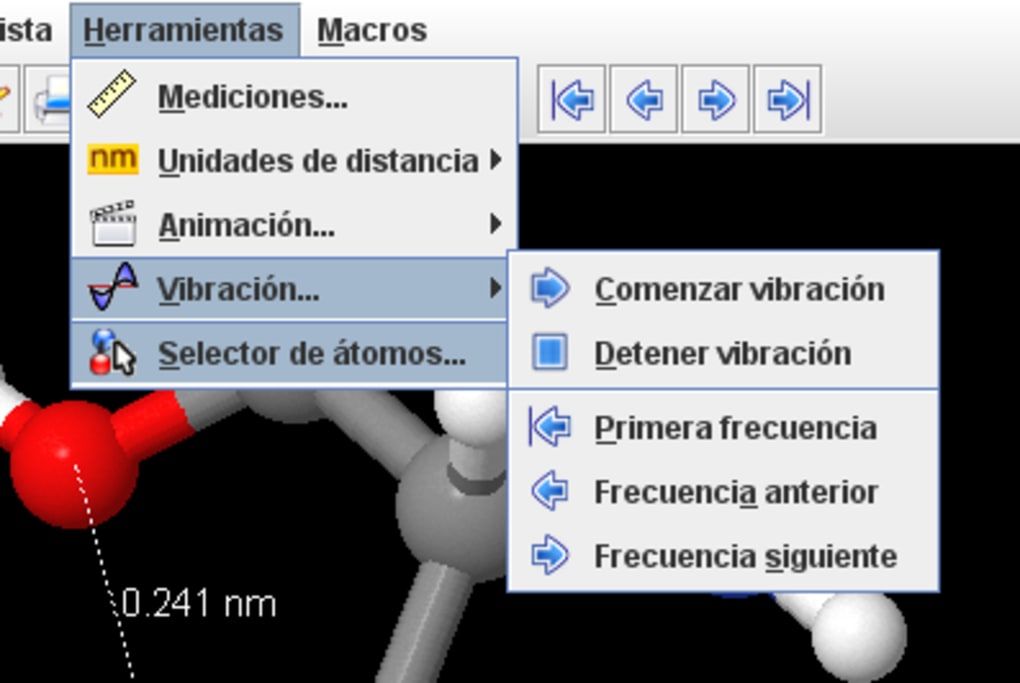
- Explore basic controls: left‑click and drag to rotate, scroll wheel to zoom, and right‑click for context‑specific menus. Advanced users can open the Console (via File → Console**) to type Jmol script commands for precise measurements or custom visual styles.
Because Jmol relies on Java, keeping your JRE up‑to‑date ensures compatibility with newer operating systems and security patches. The installer also offers an optional “portable” version that can be run from a USB stick without writing to the host PC—a handy feature for teachers who move between classrooms.
Compatibility, Pros & Cons
System Compatibility
Jmol is officially supported on Windows 98, Windows XP, Windows 7, Windows 8, and Windows 10. The program runs on both 32‑bit and 64‑bit architectures, provided that a compatible Java Runtime Environment (JRE 1.6 or newer) is installed. While the primary distribution targets Windows, the same Java‑based core can be executed on macOS and Linux using the Jmol applet or the command‑line version, though those platforms are not covered by the official Windows installer. Minimum hardware requirements are modest: a 1 GHz processor, 512 MB RAM, and an OpenGL‑capable graphics card (integrated graphics work fine for most models). Because Jmol is lightweight, it works well on older laptops and netbooks commonly found in schools with limited IT budgets.
Pros
- Free and open source: No licensing fees, ideal for budget‑conscious institutions.
- Broad file‑format support: Handles virtually every common chemistry and crystallography format.
- Low system demands: Runs on legacy hardware and older Windows versions.
- Extensible scripting: Users can automate repetitive tasks or create interactive tutorials.
- Multilingual interface: Built‑in English, Spanish, and German translations.
Cons
- Java dependency: Requires a separate JRE installation, which can be a hurdle for users unfamiliar with Java.
- Interface looks dated: The UI has not been modernized since 2012, which may feel less polished compared to newer tools.
- Limited Windows‑only packaging: No native macOS or Android app, despite the Java core being cross‑platform.
- Sparse official support: Updates are infrequent, and bug reports rely on community forums.
Overall, Jmol delivers a powerful, cost‑free solution for molecular visualization, especially for Windows users seeking a lightweight, scriptable tool. Its few drawbacks are outweighed by its versatility and long‑standing reputation in the scientific community.
FAQ & Conclusion
Is Jmol compatible with the latest Windows 10 and 11 versions?
Yes. Although the last official update was in 2012, Jmol runs on Windows 10 and Windows 11 as long as a current Java Runtime Environment is installed. Users report stable performance on both 32‑bit and 64‑bit builds.
Do I need an internet connection to use Jmol?
No. Jmol is a fully offline application. An internet connection is only required for downloading updates, accessing online documentation, or using the web‑based applet version.
Can I embed Jmol visualizations in a website?
Absolutely. Jmol provides an HTML5/Javascript applet that can be embedded directly into web pages, allowing students to interact with 3‑D models without installing any software.
What file formats are supported for import?
Jmol reads PDB, CIF, XYZ, MOL, MOL2, SDF, and many other common chemistry and crystallography formats. It also supports compressed archives (.zip) that contain supported files.
Is there a portable version that can run from a USB stick?
Yes. The Jmol download page offers a “portable” ZIP archive that requires no installation—simply unzip the folder onto a USB drive, ensure Java is present on the host computer, and launch Jmol.exe.
Final Verdict
Jmol remains a compelling choice for educators, researchers, and hobbyists who need a reliable, free molecular visualizer on Windows. Its modest system requirements, extensive format support, and powerful scripting capabilities outweigh the dated user interface and reliance on Java. If you are looking for a secure, downloadable tool that can be quickly deployed in a classroom or lab, Jmol delivers exactly that. Download Jmol today and start exploring the microscopic world with a trusted, open‑source application.
Guides & Tutorials for Jmol
How to install Jmol
- Click the Preview / Download button above.
- Once redirected, accept the terms and click Install.
- Wait for the Jmol download to finish on your device.
How to use Jmol
This software is primarily used for its core features described above. Open the app after installation to explore its capabilities.
User Reviews for Jmol 0
No reviews found





